01
Smart task prioritization
Sort work by urgency and importance so you always know what deserves attention next.
Plan your day, focus on what matters, build better habits, and turn meaningful goals into consistent progress.
Your day. Your goals. One focused workspace.
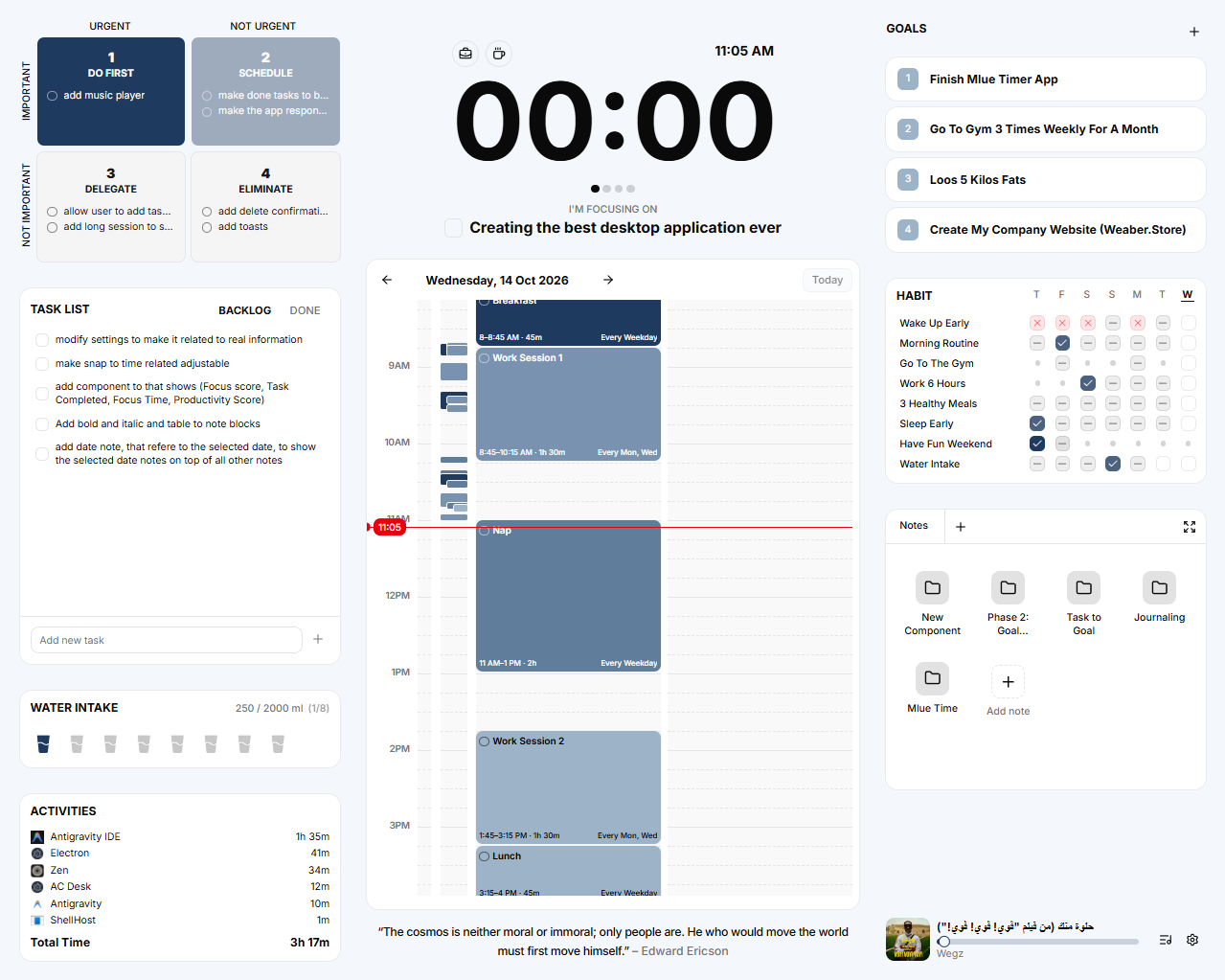
A clearer way to work
Mlue Timer brings your daily productivity tools together in one calm desktop workspace.
Sort work by urgency and importance so you always know what deserves attention next.
Structure focused work sessions and breaks with a dedicated timer built into your workspace.
See your activities on a timeline and shape a day that works with your energy.
Keep a simple weekly view of the habits that help you show up consistently.
Keep long-term goals visible and connect everyday actions with meaningful progress.
Keep useful notes and information close to the work and goals they support.
Review tracked application activity and understand where your time is going.
Bring tasks, habits, scheduling, and focus into one calm place to review and reset.
A simple rhythm
Organize tasks, prioritize important work, and decide what deserves your attention.
Use the focus timer and schedule to structure your workday.
Track habits, review your progress, and keep moving toward your goals.
Questions, answered
Mlue Timer is a Windows desktop productivity workspace for planning tasks, focusing your time, tracking habits, and keeping goals visible.
The current download is intended for Windows. Other operating systems are not supported by this release.
Pricing and licensing details have not been published yet. Check back for the latest information.
Download the Windows installer when it is available, open it, and follow the installation prompts.
Offline behavior has not been confirmed yet.
The latest installer will be published at this website when a release is ready.
Start with intention
Bring your tasks, focus sessions, habits, and goals together with Mlue Timer.